To animate an SVG logo cleanly, start with a file whose meaningful parts are separate elements or groups. Give those parts stable IDs, sequence only a few entrances, add at most one whole-logo finish, and test the exported SVG in its real destination. Also provide a static state for people who request reduced motion.
You do not need a large animation library for a short logo reveal. CSS inside a self-contained SVG can handle opacity and transform-based entrances. The difficult part is not writing a keyframe. It is deciding what should move, in what order, and what must still work when animation is unavailable.
What Makes an SVG Logo Animatable?
An SVG is an XML document made from elements such as path, rect, circle, text, and g. Animation controls can target those elements separately when they remain separate in the source.
A logo with one signet and one wordmark group gives you two useful animation units. A logo exported as one compound path may still move as a whole, but a browser tool cannot reliably reconstruct the designer’s original letters or shapes from that single path.
The transform attribute and its CSS counterpart can be applied to SVG elements. CSS takes priority when both are present, so test a source file that already uses transforms before adding scale, rotation, or movement. The SVG viewBox defines the visible coordinate area, which also matters when a scaled or glowing finish extends beyond the original artwork.
Start With a Clean SVG Structure
Open the source in a vector editor or code editor and identify the parts that carry meaning. A small logo often needs only:
- a symbol or mark;
- a wordmark;
- an optional accent.
Prefer a meaningful group such as id="wordmark" over dozens of anonymous paths. Remove unused editor metadata, but do not flatten every group just to reduce the number of lines. The structure is what makes per-element timing possible.
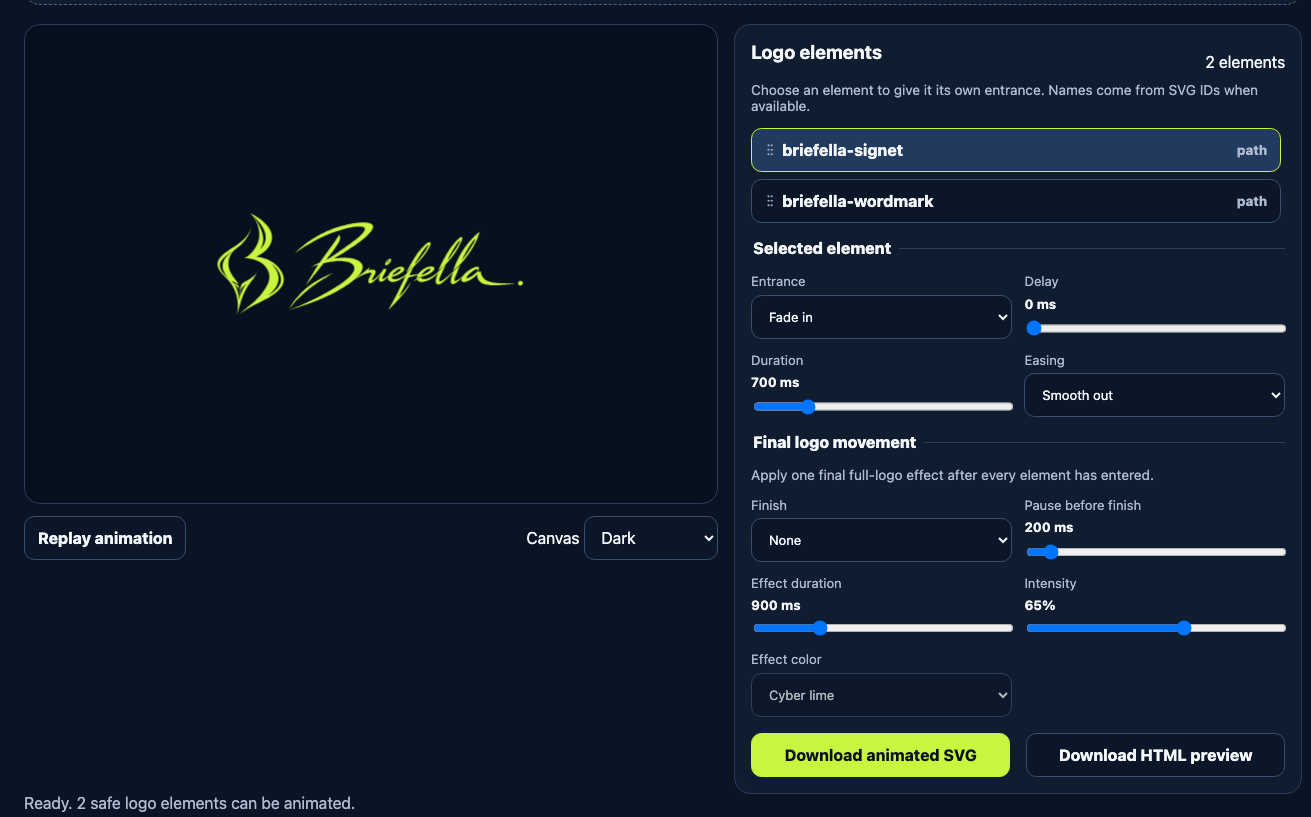
The example below uses the project-owned Briefella signet and wordmark. The two approved source assets remain separate in the demonstration file, so each can have its own timing without altering the logo paths.
Animate your SVG logo locally when you want to inspect the elements, reorder them, and build the CSS without uploading the artwork. The tool removes scripts, event handlers, external resources, embedded HTML, and existing active SVG animation before preparing the workspace. That is a defensive input boundary, not a guarantee that every SVG is safe in every downstream system.
Build a Short Element Sequence
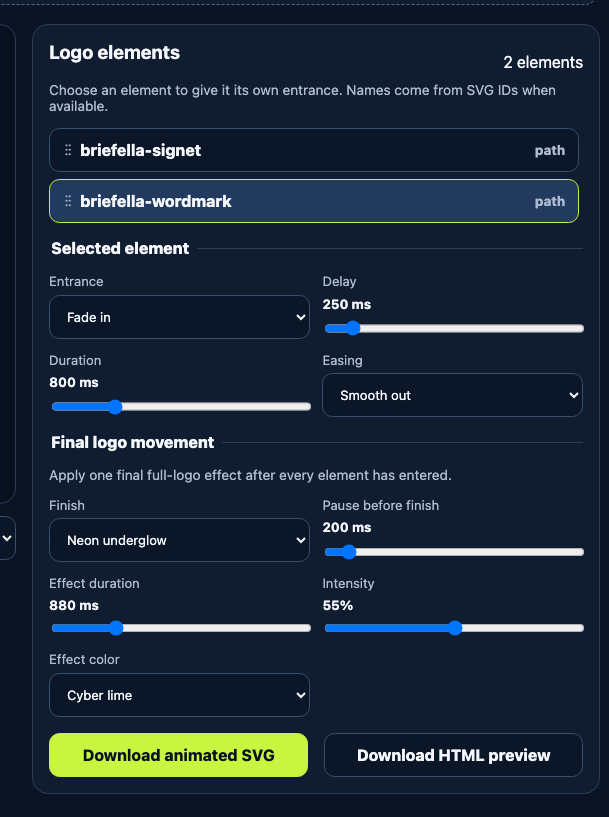
Treat the reveal as a reading order, not a collection of effects. A practical sequence for the Briefella demo is:
- Raise and fade in the signet.
- Fade in the wordmark after a short delay.
- Apply one restrained whole-logo finish.
The TomSEOTools workspace starts each detected element with a small stagger. You can drag elements to change the order or use Alt plus Arrow Up and Arrow Down from the keyboard. The list order and delays are then kept together.
Keep the total entrance sequence short enough that the logo becomes recognisable quickly. There is no universal best duration. A subtle brand reveal in a page header needs different timing from a presentation opener. Judge the result in context rather than chasing a fixed number.
Set Delay, Duration and Easing by Element
Each element has four decisions:
- Entrance: fade, rise, scale, rotate, or no entrance.
- Delay: when the element starts relative to the beginning of the sequence.
- Duration: how long that element takes to settle.
- Easing: how the speed changes through the motion.
Use variation to explain hierarchy, not to show every available control. If the symbol is the recognisable part of the logo, let it arrive before the wordmark. If the wordmark must remain immediately readable, give it no movement and use only opacity.
Rotation deserves restraint. It is easy to make a precise logo feel unstable when several parts rotate from different origins. Scale can also expose clipping when the source viewBox is tight. The local generator expands the working canvas before export so its whole-logo zoom and glow effects have room, but the final file still needs to be checked wherever it will be embedded.
Add One Final Whole-Logo Movement
After the elements have entered, one short finish can make the sequence feel intentional. The generator currently offers Cyberpunk Snap, Chrome Flash, Neon Underglow, Signal Boot, Final Punch, Clean Snap, and Gentle Pulse.
Choose one. Stacking several finishes usually weakens the logo and makes the animation harder to read. The finish controls let you set the pause, duration, intensity, and a constrained effect colour where the effect uses one.
| Finish style | Useful when | Main risk |
|---|---|---|
| Clean snap or final punch | The reveal needs a clear end state | Excessive scale can feel abrupt |
| Chrome flash | A brief highlight fits the visual identity | Bright movement can distract from the wordmark |
| Neon underglow | The logo sits on a dark technical interface | Glow can be clipped or lose contrast on light backgrounds |
| Signal boot or cyberpunk snap | The brand already uses a digital visual language | A strong effect can date quickly or overpower a simple mark |
| Gentle pulse | A quiet finish is more appropriate | Repeated motion should not continue indefinitely |
The goal is a completed logo, not a looping attention trap. A finite entrance with a stable final frame is easier to place beside navigation, copy, and controls.
Export and Test the Real File
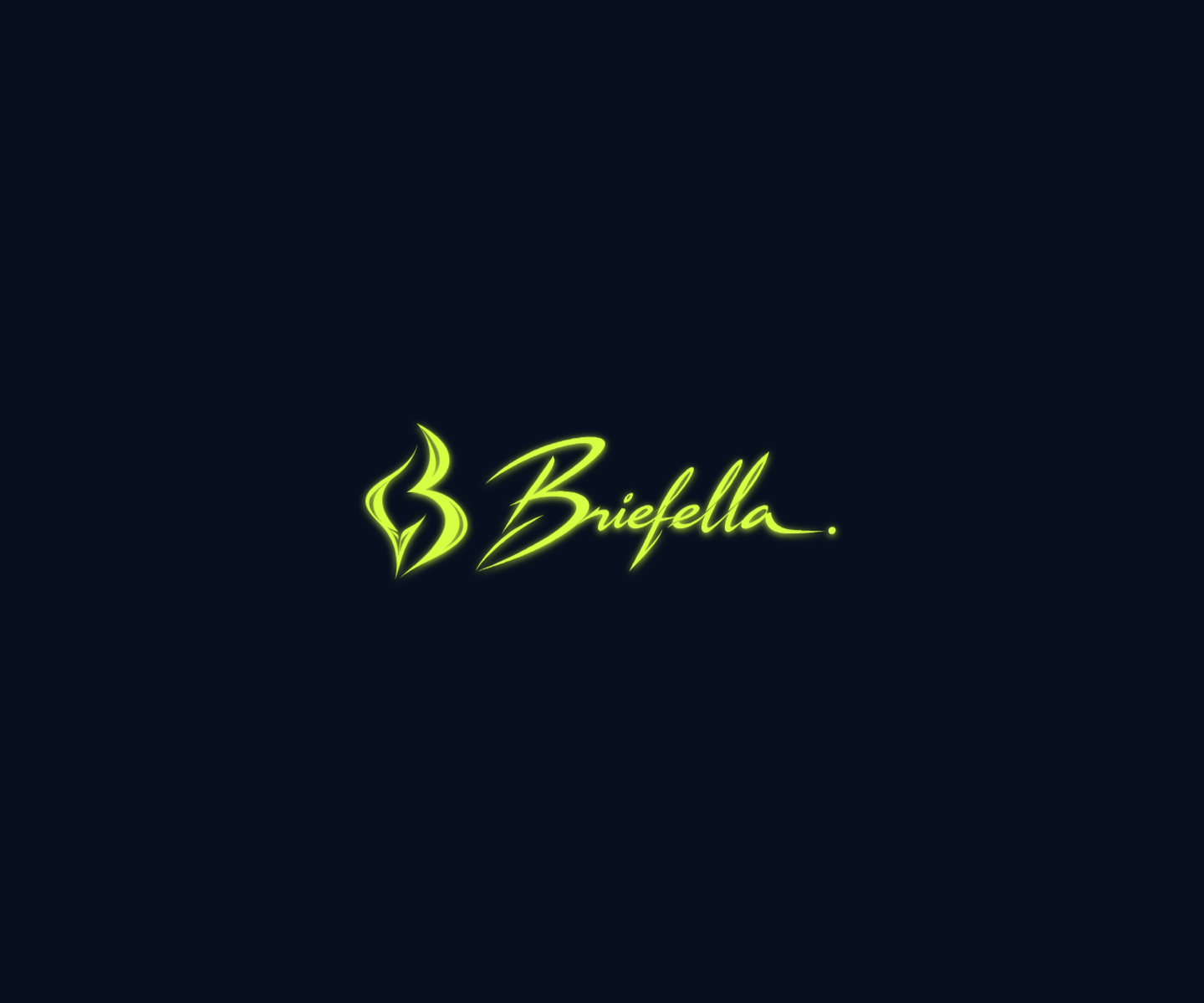
The generator creates two downloads. The -animated.svg file contains the prepared SVG and scoped animation styles. The -preview.html file places that SVG on a neutral page for a quick browser test. Keep the original source SVG as well.
Test more than the standalone preview. SVG behavior depends on how the file is used. SVG 2 defines different processing modes for direct documents and image subresources. An SVG referenced by an HTML img element is treated as an image, with scripting and interaction disabled; declarative animation may still be allowed by the user agent. Other destinations, including email clients, CMS sanitizers, social platforms, and asset pipelines, may remove animation or convert the file.
| Destination | What to verify | Safe fallback |
|---|---|---|
HTML img | Animation runs, intrinsic size is correct, no clipping occurs | Original static SVG |
| Inline SVG | Styles do not leak and page styles do not override the mark | Scoped selectors and a static state |
| CMS media library | Upload and sanitization preserve the expected markup | Store an approved static SVG or PNG |
| The client accepts SVG and preserves animation | Static PNG with the same final frame | |
| Social preview | The platform accepts the file type and renders a still correctly | Export a dedicated PNG or WebP card |
Do not replace the production logo until the exact embed has been tested on desktop, mobile, light and dark surfaces, and with animation reduced.
Respect Reduced Motion
The CSS media feature prefers-reduced-motion detects when a person has asked the operating system to minimize non-essential motion. MDN recommends reducing or replacing motion that may cause discomfort, particularly large scale and pan effects.
The exported TomSEOTools animation includes a prefers-reduced-motion: reduce rule that disables the entrance and final motion so the completed logo remains visible. This is not the same as hiding the logo or stopping it on an invisible first frame.
Reduced motion is one fallback. Keep a clean static source too, because some renderers do not run CSS animation at all.
Common Failure Modes
The tool finds one giant layer
The source was probably flattened or converted into one compound path. Return to the vector source and export meaningful groups. An automatic splitter cannot know which subpaths were intended as letters, counters, highlights, or masks.
A scale or glow is cut off
The original viewBox is tight around the artwork. Add space around the artwork or use an export process that expands the viewBox. Then confirm that the visual size still fits the intended layout.
The logo looks different after sanitization
It may rely on external fonts, images, styles, filters, or references. Convert essential typography to approved local paths when licensing allows, and simplify dependencies that the destination cannot load. Do not assume a browser preview reproduces a CMS or email renderer.
The animation works directly but not in its destination
The destination may process SVG as a static image, strip styles, or reject the file. This is normal compatibility testing, not proof that the SVG is broken. Use the static fallback when the destination does not preserve the animation.
The sequence feels busy
Remove effects before adjusting milliseconds. Keep only the motion that clarifies order or gives the reveal a clear finish.
A Practical Pre-Publish Checklist
- The source contains only the layers you intend to animate.
- IDs or group names describe meaningful parts.
- The sequence has a clear reading order.
- The logo reaches a stable final frame quickly.
- The finish does not obscure the wordmark.
- The expanded canvas prevents clipping.
- The reduced-motion state shows the complete logo.
- The original static SVG remains available.
- The exact CMS, page, email, or application embed has been tested.
- The exported file contains no unexpected external references or active content.
Frequently Asked Questions
Can I animate a logo exported as one path?
Yes, but only as one unit unless you edit the source. The browser cannot reliably infer the designer’s intended layers from an arbitrary compound path.
Does an animated SVG need JavaScript?
No. Short opacity and transform sequences can use CSS keyframes embedded in the SVG. JavaScript is useful for interactive control, but it is not required for this workflow.
Will an animated SVG work in every browser, CMS, and email client?
No. Support depends on the embedding mode and the destination’s sanitization and file policies. Test the real destination and keep a static fallback.
Is sanitizing the upload enough to make any SVG safe?
No. Sanitization reduces the accepted feature set. It does not replace destination-specific validation, server policy, content security controls, or a review of untrusted files.
Should a logo animation loop?
Usually not. A short entrance that ends in a stable mark is less distracting. If the motion carries essential information, provide an equivalent way to understand it without animation.
Sources and Verification
- MDN: prefers-reduced-motion
- MDN: SVG transform
- MDN: SVG viewBox
- W3C: SVG 2 conformance and processing modes
- W3C: SVG 2 scripting and interactivity
Source review date: 28 October 2026. Product behavior was checked against the current TomSEOTools source and automated tests. The article does not claim universal SVG animation support, complete malware protection, or a performance, ranking, or conversion improvement.